
1. Get the Key
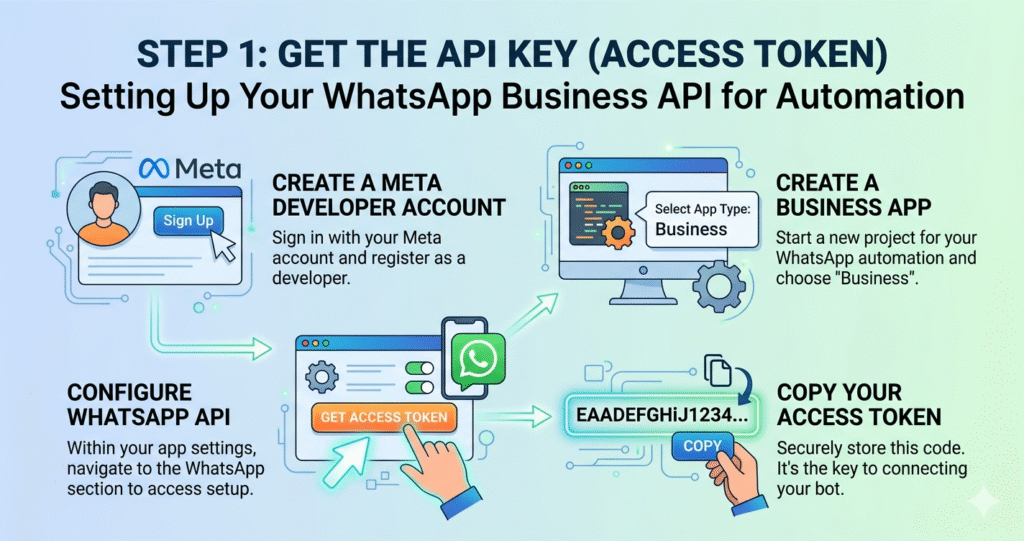
Go to Portal: Log in to developers.facebook.com.
Create App: Click Create App > Select Other > Select Business.
Add WhatsApp: Scroll to find “WhatsApp” and click Set up.
Copy Token: Meta will give you a Temporary Access Token. Copy this—it is your “Key” to start testing.
Step 2: Connect Your Number
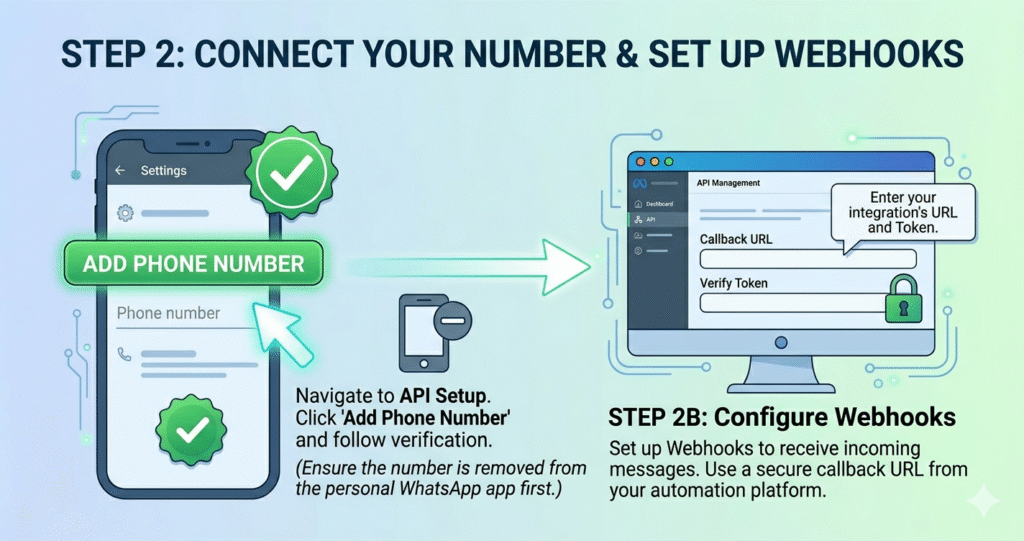
Find Setup: In your App Dashboard, go to WhatsApp > API Setup.
Add Number: Scroll to “Step 5” and click Add Phone Number.
Verify: Enter a number (not currently on WhatsApp). Verify it via SMS or Voice code.
Connect: Once verified, this number is now linked to your API.
Step 3: Build the Brain (Automation)
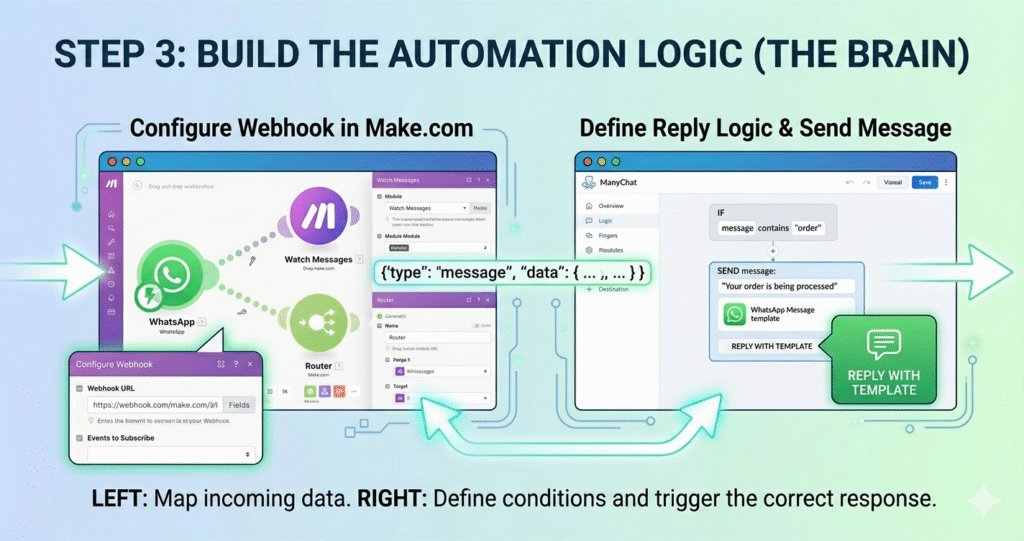
Pick a Tool: Sign up for a builder like Wati, AiSensy, or ManyChat.
Link API: Paste your Access Token and Phone Number ID (from Step 1) into the tool.
Set Rules: Use their drag-and-drop editor:
If: User types “Help.”
Then: Bot sends a menu of services.
Step 4: Go Live
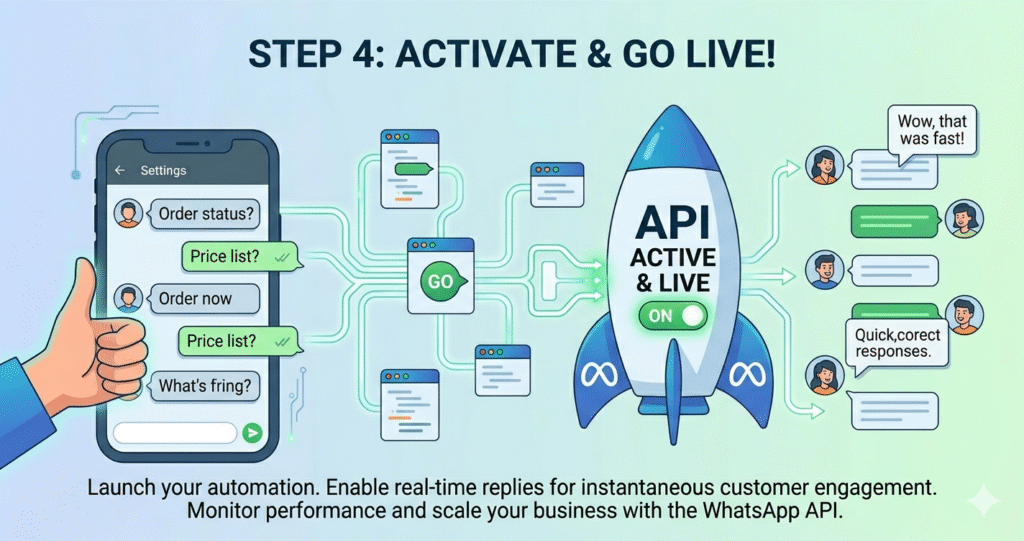
Create Templates: In the Meta Dashboard, write your “welcome” or “order” messages and click Submit. (Approval takes ~1 minute).
Switch to Live: Toggle the “Development” button at the top of the screen to “Live.”
Test: Message your API number from your personal phone to see the magic happen!
Gemini said
Here are the most important lines for each step, organized in a clear table to keep it short and professional.
WhatsApp API Automation: Key Actions
Step Focus The "Important Line" 1. Get the Key Access Create a Business App on the Meta Developers Portal to get your Permanent Access Token. 2. Connect Number Identity Use a clean phone number (not active on the regular app) and verify it via SMS/Voice. 3. Build the Brain Logic Connect your API to a No-Code Builder to set "If/Then" rules without writing code. 4. Go Live Launch Submit your Message Templates for Meta approval and toggle the app to Live Mode.
Here are the most important lines for each step, organized in a clear table to keep it short and professional.
WhatsApp API Automation: Key Actions
| Step | Focus | The "Important Line" |
|---|---|---|
| 1. Get the Key | Access | Create a Business App on the Meta Developers Portal to get your Permanent Access Token. |
| 2. Connect Number | Identity | Use a clean phone number (not active on the regular app) and verify it via SMS/Voice. |
| 3. Build the Brain | Logic | Connect your API to a No-Code Builder to set "If/Then" rules without writing code. |
| 4. Go Live | Launch | Submit your Message Templates for Meta approval and toggle the app to Live Mode. |